Understanding Your Smartphone: A Plain-English Starter Guide
A smartphone is one of the most powerful tools you can carry, but it can feel overwhelming when you are just starting out. This guide explains the basics in simple, plain language so you can use your phone with confidence.

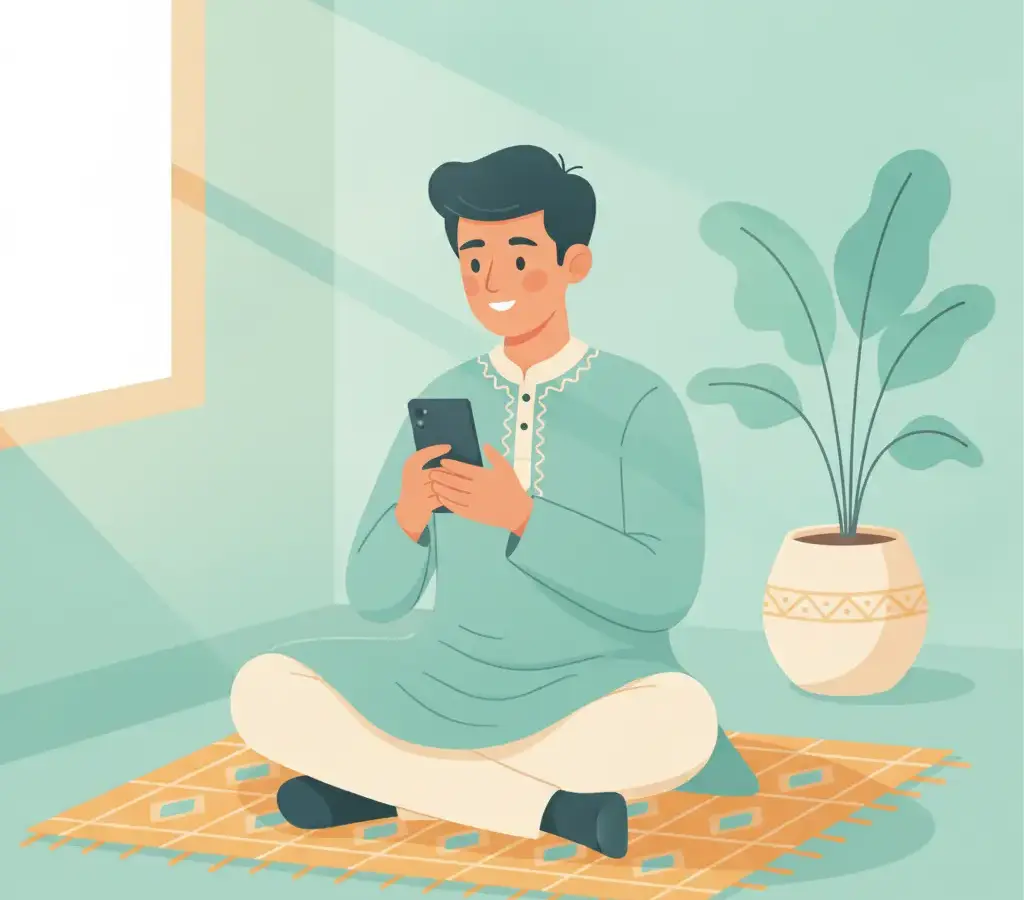
A smartphone is a small computer you carry in your pocket. It lets you call and message people, browse the internet, take photos, and use apps for almost anything. Learning a few key settings — like Wi-Fi, mobile data, and storage — will help you get the most from your device without wasting money or battery.
Key Takeaways
- Connect to Wi-Fi at home or in trusted places to save your mobile data and reduce your monthly bill.
- Only install apps from the Google Play Store — avoid downloading apps from WhatsApp links or unknown websites.
- Regularly clear apps running in the background to save battery and keep your phone running smoothly.
- Set a PIN or fingerprint lock on your phone so that your personal information stays protected if your phone is lost or stolen.
When you first hold a smartphone, it can feel like a mystery. The screen lights up, apps appear everywhere, and notifications keep buzzing. Many people in Karnataka use smartphones every day for years but still feel unsure about what some features actually do or how to avoid common problems. This guide will help you understand your phone from the beginning, in plain and clear language.
What is a smartphone, really?
A smartphone is a small computer that also works as a phone. It has a touchscreen that responds to your finger taps. Inside it there is a processor (which does the thinking), memory (which stores your photos, messages, and apps), and a battery (which gives it power). Most smartphones in India today run on an operating system called Android, made by Google. Some expensive phones use iOS, made by Apple.
Your phone connects to the world in two ways: through your SIM card (which gives you mobile data and calling from your network provider like Jio, Airtel, or BSNL) and through Wi-Fi (which connects you to the internet through a wireless router at home, in a café, or in an office).
Wi-Fi versus mobile data — what is the difference?
Mobile data uses the internet connection provided by your SIM card. You pay for this through your monthly recharge plan. It works almost anywhere there is a mobile signal. Wi-Fi uses a wireless router that someone has set up — at your home, at a relative’s house, or at a shop. Wi-Fi does not use your mobile data, so it saves you money.
Turn on Wi-Fi whenever you are at home or in a place with a trusted network. This will save your mobile data for when you are outside. You can turn Wi-Fi on by swiping down from the top of your screen and tapping the Wi-Fi icon.
When you are outside and there is no Wi-Fi, your phone will automatically use mobile data if you have it turned on. You can check how much data you have used by going to Settings → Network → Data Usage on most Android phones.
Understanding apps
An app (short for application) is a program that does a specific job on your phone. WhatsApp is an app for messaging. Google Maps is an app for finding directions. YouTube is an app for watching videos. Your phone comes with some apps already installed, and you can add more.
The safest place to get new apps is the Google Play Store. It is the official store for Android apps and it checks apps for safety before listing them. To find an app, open the Play Store, type the name in the search bar at the top, and tap Install.
Never install an app by clicking a link sent to you on WhatsApp or SMS, even if a friend or family member sent it. These links can lead to fake or harmful apps that steal your personal information. Always use the Play Store.
Storage: where your photos and files live
Your phone has a fixed amount of storage space — usually shown in gigabytes (GB). Photos, videos, apps, and messages all take up this space. When storage is full, your phone becomes slow and cannot take new photos.
To check how much storage you have left, go to Settings → Storage. If it is nearly full, you can free up space by:
- Deleting old photos and videos you no longer need (back them up first — see below).
- Uninstalling apps you rarely use.
- Clearing the cache of apps — go to Settings → Apps → choose an app → Storage → Clear Cache. Cache is temporary data the app has saved; clearing it is safe and frees space.
Backing up your photos
Photos are precious. If your phone is lost, stolen, or damaged, your photos will be gone forever unless you have a backup. Google Photos is a free app that automatically copies your photos to the internet (called ‘the cloud’) whenever you are connected to Wi-Fi. Install it from the Play Store, sign in with a Google account, and turn on backup. Your photos will be safely stored and you can see them from any phone or computer.
Battery life — how to make it last longer
Battery life is often a worry, especially for older phones or those with heavy use. Here are simple habits that help:
- Reduce the screen brightness — a very bright screen uses a lot of battery.
- Turn off Bluetooth and Wi-Fi when you are not using them.
- Close apps you are not using by pressing the square button at the bottom of your screen and swiping them away.
- Turn on Battery Saver mode when your charge is getting low — go to Settings → Battery → Battery Saver.
Keeping your phone secure
Your phone contains a great deal of personal information — your photos, your messages, your bank apps, and your contacts. Protecting it is important.
- Set a PIN, pattern, or fingerprint lock. Go to Settings → Security → Screen Lock. Choose a PIN of at least six digits or set up your fingerprint. This means if your phone is lost, strangers cannot access your information.
- Do not share your screen lock PIN with anyone except people you fully trust.
- Keep your Android software up to date. Go to Settings → System → Software Update and install updates when they appear. Updates often fix security problems.
Write down your Google account email and password somewhere safe at home, not on your phone. If you ever lose your phone or forget your lock PIN, you will need these details to recover your account and access your backed-up photos and data.
Common smartphone problems and quick fixes
Even experienced users face small problems with their phones. Here are the most common ones and what to do:
- Phone is slow: Restart it (hold the power button and tap Restart). This clears temporary memory and usually speeds things up.
- Can’t connect to Wi-Fi: Turn Wi-Fi off and on again, or restart your router at home (unplug it, wait 10 seconds, plug it back in).
- App keeps crashing: Go to Settings → Apps → find the app → tap Force Stop, then try opening it again. If it keeps crashing, uninstall and reinstall it from the Play Store.
- Phone not charging: Try a different charging cable. Dust and lint in the charging port can also block the connection — you can gently clean it with a dry toothpick.
Smartphones take a little time to get comfortable with, but there is no rush. Start with the basics — calls, messages, and WhatsApp — and gradually explore other features when you feel ready. Every person who seems confident with their phone today was once a beginner, just like you.
Sources
Kavya Hegde
Kavya Hegde covers Karnataka government digital services for Cyber Kannadigas. Based in Hubballi, she has a background in public administration and has spent years helping citizens — and her own extended family — navigate online government portals from Seva Sindhu to Bhoomi… Read full profile →
Frequently Asked Questions
Stay scam-safe: alerts in your inbox
Get new scam alerts, UPI-safety tips, and digital-literacy guides weekly. Free.