Android App Permissions: Which Are Risky and How to Manage Them
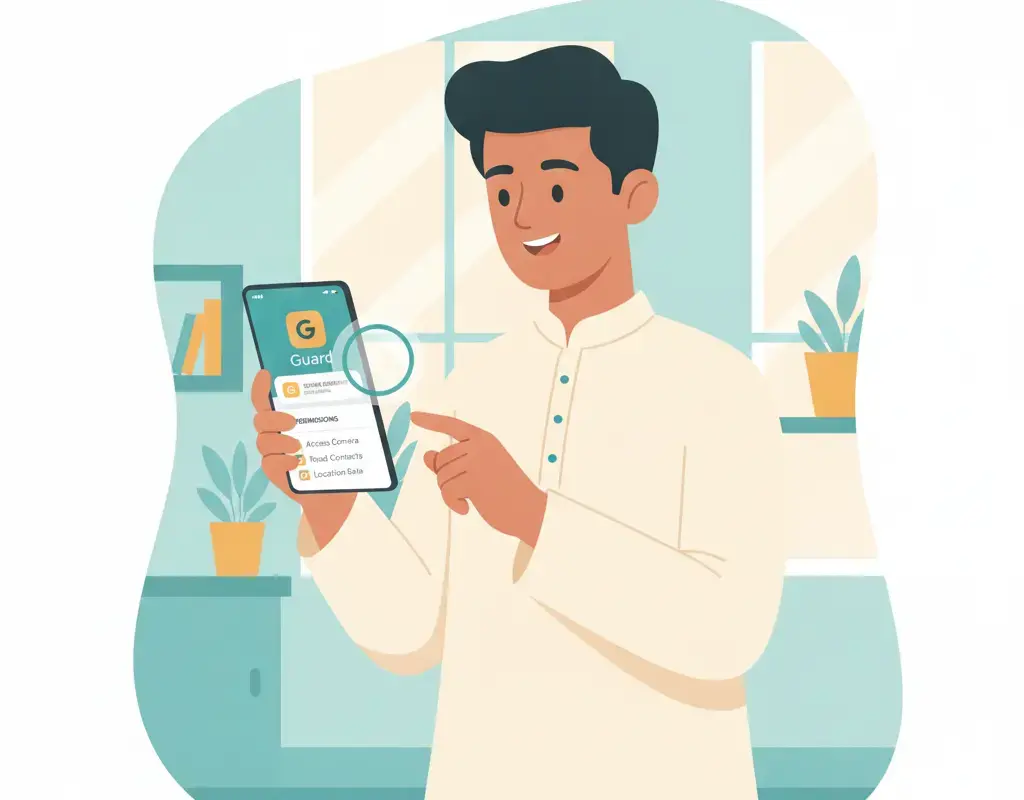
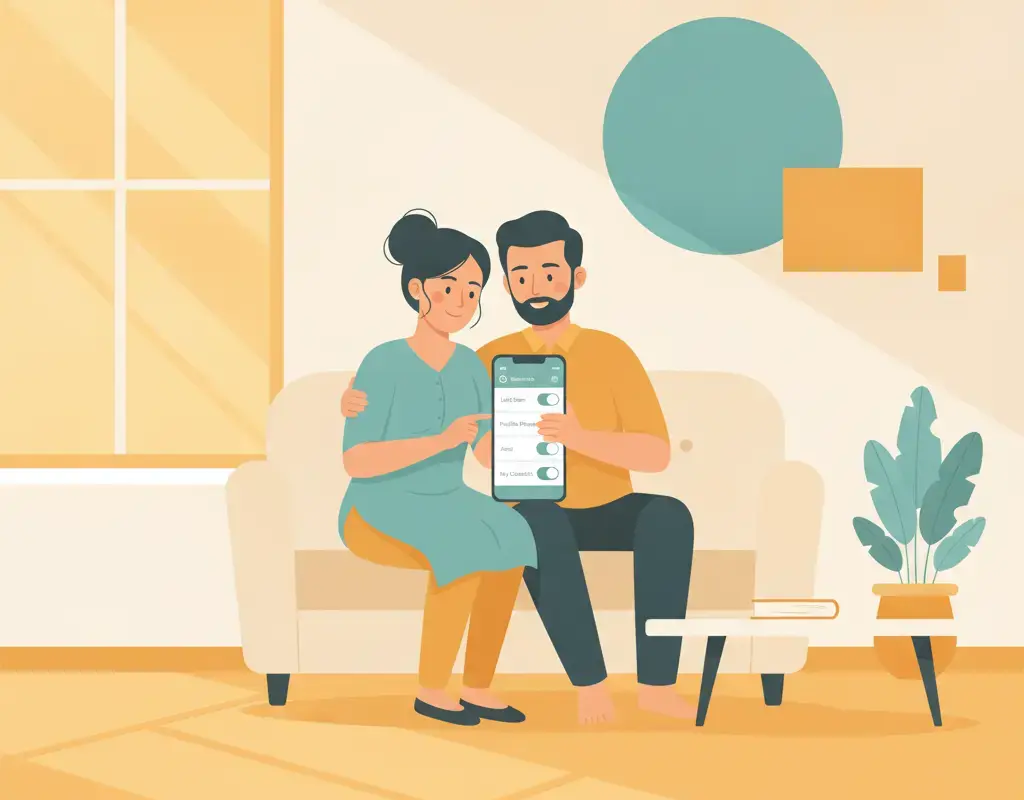
Android permissions decide what every app on your phone can access — from your contacts to your microphone. Understanding which permissions are genuinely risky, and how to audit them, is one of the most practical steps you can take to protect your personal data.

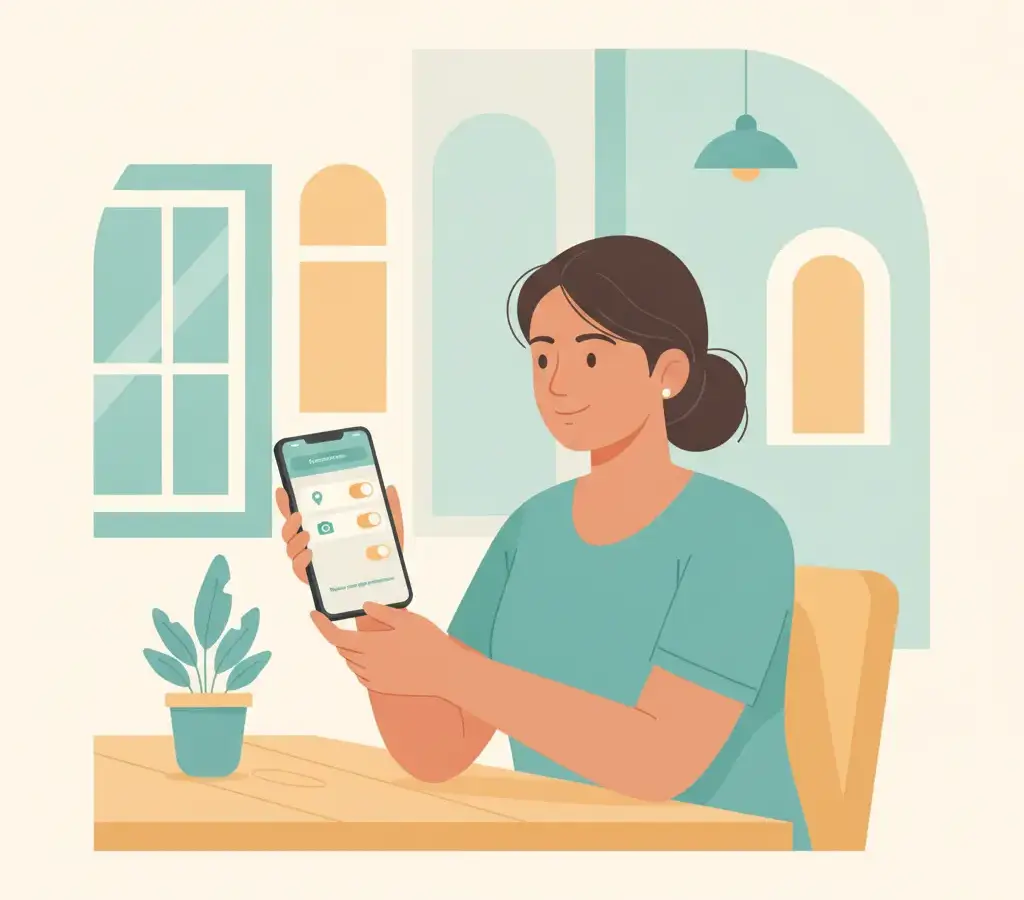
Open Settings → Apps → select an app → Permissions to see and revoke what each app can access. Pay close attention to Location, Microphone, Camera, Contacts, and SMS permissions — these carry the highest privacy risk and many apps request them without a clear need.
Key Takeaways
- Location, Microphone, Camera, Contacts, and SMS are the five highest-risk Android permissions — review them first.
- Android 12 and later lets you grant approximate location only, which is safer for most apps that just need your city.
- Use the Permission Manager (Settings → Privacy → Permission Manager) to see every app with a given permission at once.
- Revoking a permission does not delete the app — the app simply loses that access until you grant it again.
Why App Permissions Matter
Every Android app you install can ask for access to different parts of your phone’s hardware and data. When you tap “Allow,” you are giving that app a standing key to that resource — it can use it any time the app runs, not just when you are watching. A note-taking app that reads your contacts or a calculator that wants microphone access should raise questions.
Google Play’s permission policies require developers to request only the permissions their apps actually need. In practice, enforcement is imperfect, and many apps from outside the Play Store carry no checks at all. Knowing which permissions are most sensitive, and how to review them, puts the control back in your hands.
The Five Highest-Risk Permissions
1. Location
Location is the most commercially valuable permission. An app with precise GPS access knows where you live, where you work, and where you go. Since Android 12, you can grant approximate location instead of precise — this is adequate for weather apps, food delivery apps showing nearby restaurants, and most navigation-adjacent uses. Reserve precise location for maps and navigation only.
2. Microphone
Microphone access lets an app record audio at any time while it runs in the background. Voice assistants and video-calling apps need it. A recipe app or a flashlight app has no legitimate reason to request it. If you see microphone permission on an app that has no audio feature, deny it.
3. Camera
Camera access enables photo and video capture. Legitimate uses include QR scanners, video-call apps, and document scanners. On Android 12 and above, a green indicator dot appears in the top-right corner of your screen whenever the camera or microphone is actively in use — watch for it.
4. Contacts
Contacts permission hands over every name, phone number, and email address stored on your device. For a messaging app this is expected. For a gaming app or a utility tool, it is a red flag. Attackers use harvested contact data to craft convincing phishing messages targeting people you know.
5. SMS
SMS permission lets an app read every text you receive, including one-time passwords (OTPs). No legitimate third-party app needs this for normal operation. Fraudulent apps that target banking customers specifically request SMS access to intercept OTPs silently. CERT-In advisories have repeatedly flagged fake loan apps and fake KYC apps that abuse SMS permission — this is a live threat in India.
Other Permissions Worth Watching
- Call logs: Shows your full call history — no reason a shopping or gaming app needs this.
- Storage / Files and Media: Grants read/write access to your files, photos, and downloads. Broad storage access is being replaced by more specific media permissions in newer Android versions.
- Notifications: Since Android 13, apps must ask before sending notifications. Granting this to low-quality apps floods you with promotions and phishing links.
- Nearby devices (Bluetooth): Required for speakers and wearables, but some ad SDKs use it for proximity tracking.
Apps installed from outside the Google Play Store — via APK files shared on WhatsApp or Telegram — bypass Google Play Protect scanning entirely. These sideloaded apps account for a disproportionate share of Android malware reported in India. Avoid installing APKs from unknown sources.
How to Audit Permissions on Your Device
There are two main routes to check permissions on any Android phone running Android 10 or later. The steps below use stock Android; Samsung One UI and Xiaomi MIUI use the same paths but the menu labels may differ slightly.
App-by-app check
Go to Settings → Apps, tap the app you want to inspect, then tap Permissions. You will see a list split into “Allowed” and “Not allowed.” Tap any permission to change it. For location you will see options: Allow all the time, Allow only while using the app, Ask every time, or Don’t allow. “Allow only while using” is the right choice for most location-enabled apps.
Permission-by-permission check
Go to Settings → Privacy → Permission Manager. This view lists every permission category and shows all apps that have been granted it. This is faster when you want to answer the question: “which apps can read my SMS right now?” Tap a permission, tap an app, and adjust from there.
Android 11 introduced auto-reset permissions: if you have not used an app for a few months, Android automatically revokes its sensitive permissions. Make sure this is on by checking Settings → Apps → Special app access → Remove permissions if app isn’t used.
Permissions You Cannot Grant to Third-Party Apps
Some permissions are reserved for system apps or require explicit manufacturer unlocking. You cannot, for example, grant a third-party app permanent access to call interception at the baseband level. Understanding this helps you recognise when a fake “security app” claiming it needs such access is lying to you.
Play Protect and What It Actually Does
Google Play Protect scans apps on your device for known malware signatures and checks behaviour patterns against Google’s threat database. It runs automatically. You can trigger a manual scan from Google Play → profile icon → Play Protect → Scan. Play Protect is a useful baseline but it is not a substitute for permission hygiene — a data-harvesting app that is technically not “malware” can still pass Play Protect while abusing your contacts or location.
A Practical Audit Routine
Set a reminder to do a permission audit every three to four months. Work through the Permission Manager, focusing on the five high-risk categories. Ask yourself: does this app’s core function require this permission? If the answer is no, revoke it. The app will still work for everything it does not need that permission for.
Sources
Vikram Nayak
Vikram Nayak leads cybersecurity coverage at Cyber Kannadigas. He is a certified information-security professional (CompTIA Security+ and CEH) with eight years of experience in security operations and awareness training at IT-services firms in Bengaluru. Vikram translates dense security concepts — phishing kits,… Read full profile →
Frequently Asked Questions
Stay scam-safe: alerts in your inbox
Get new scam alerts, UPI-safety tips, and digital-literacy guides weekly. Free.