Smartphone Basics: Helping an Elderly Parent Get Started Safely
Setting up a smartphone for an elderly parent can feel overwhelming for both of you — but done step by step with patience and care, it becomes one of the most useful things a family can do together. This guide walks you through the key safety steps and helps your parent feel confident, not confused.
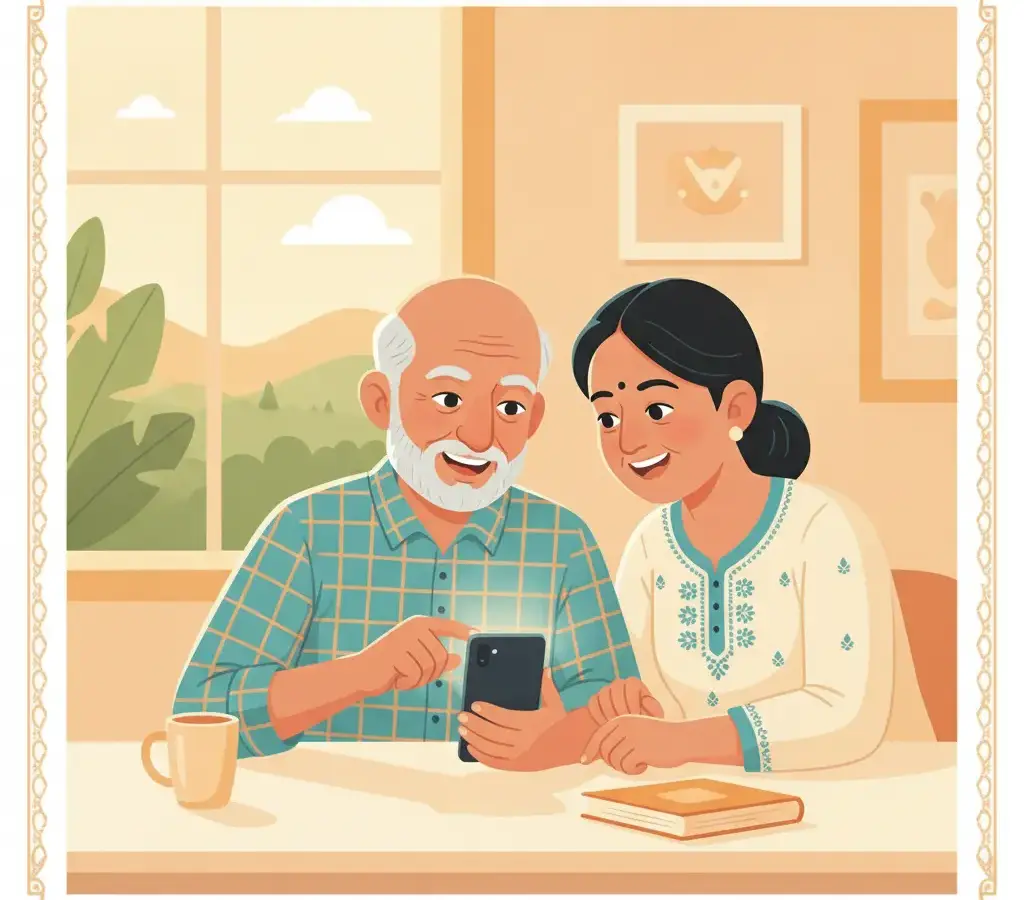
Set up your elderly parent's smartphone with a simple screen lock, a small trusted contacts list, and a few safe apps. Enable the emergency SOS feature. Write down the key rules together: never share OTP or PIN, call 1930 for cyber fraud, and always ask a family member before installing a new app or clicking an unknown link.
Key Takeaways
- Set a simple 4-digit PIN or fingerprint lock on the phone — this is the single most important step to protect the device if it is lost.
- Create a short “Trusted Contacts” list in the phone with full names, so your parent can call family easily without memorising numbers.
- Enable the phone's built-in emergency SOS feature so your parent can call for help quickly in any emergency.
- Agree on a household rule: before installing any new app or clicking any unknown link, check with a family member first — no exceptions.
A few years ago, my sister called me from Bengaluru. She had just gifted her 72-year-old mother-in-law a new Android phone so they could video-call more easily. Within a week, the elderly lady had accidentally installed three unknown apps, received a scam call, and was convinced the phone was “bad luck.” She stopped using it entirely.
That story is very common. The phone was fine. What was missing was a proper, patient setup — done together, step by step, with the safety foundations in place from day one.
This guide is for adult children and grandchildren who want to help an elderly parent or grandparent start using a smartphone safely and happily.
Before You Begin: Your Attitude Matters Most
The most important tool you bring to this process is patience. Learning new technology in your 60s or 70s is genuinely difficult — the brain forms new habits more slowly at that age, and that is not a failing, it is simply how learning works. Never say “I already showed you this” or “It’s easy, just do it.” Instead, celebrate every small success. “You found the WhatsApp icon yourself — excellent!” goes a long way.
Plan for at least two or three calm sessions, each not more than forty-five minutes, rather than one long overwhelming session.
Step-by-Step Setup for Safety
Set a Screen Lock
Go to Settings → Security (or Lock Screen) → Screen Lock. Choose a 4-digit PIN or, if the phone has it, set up fingerprint recognition. A PIN should not be a birth date or a simple sequence like 1234. Write the PIN on a piece of paper and keep it in a safe place at home — not in the phone’s notes. This one step protects all the personal information on the phone if it is ever lost or stolen.
Set Up the Emergency SOS Feature
Most Android phones allow you to press the power button five times quickly to call emergency services and send your location to trusted contacts. Go to Settings → Safety and Emergency (the name varies by phone model) → Emergency SOS. Enable it and add two or three family members as emergency contacts. Practice the button press once together so your parent knows the motion. This feature has saved lives.
Save All Important Contacts With Full Names
Do not save numbers as “8867XXXXXX.” Save them as “Son Arjun,” “Daughter-in-law Meena,” “Neighbour Girish.” Also save: the family doctor’s name and number, the nearby hospital’s number, and a contact named “Cyber Crime Help” with the number 1930. When your parent sees a familiar name on the screen, they feel calm and in control.
Increase the Font Size and Display Brightness
Go to Settings → Display → Font Size and increase it to “Large” or “Largest.” Many seniors stop using their phone simply because they cannot read the screen comfortably. Also turn on the “Bold Text” option if available. A comfortable screen makes everything easier and reduces frustration.
Install Only Three or Four Essential Apps to Start
Suggest a small, manageable set: WhatsApp (for family calls and messages), Google Maps (for navigation), a local language news app they enjoy, and YouTube for devotional or entertainment content they like. Do not install banking apps or payment apps like PhonePe or GPay in the first weeks. Once your parent is comfortable with the basics, you can introduce these carefully, with proper guidance on their safe use.
Enable Automatic Software Updates
Go to Settings → Software Update → Auto Download and Install (or similar). Keeping the phone’s software updated automatically fixes security weaknesses that criminals try to exploit. Your parent does not need to do anything — the phone handles it quietly, usually overnight when connected to Wi-Fi.
The Safety Rules to Agree On Together
Sit together and read these rules aloud. Ask your parent to repeat them back to you in their own words — that is how they become remembered, not just heard.
- Never share your OTP with anyone by phone or message — not even someone claiming to be from your bank or the government.
- Before installing any new app, ask a family member first. Any app, even one that sounds useful, can carry hidden risks.
- Before clicking any link in a message or email, show it to a family member first.
- If you receive a call asking for your Aadhaar number, PIN, or bank details, hang up. Call your bank’s official number from the back of your card to verify any real concern.
- If something frightens you or confuses you on the phone, call family immediately. There is no question too small.
Write these five rules on a piece of paper and keep it near the phone-charging spot at home. A physical reminder works better than trying to remember everything.
Teaching WhatsApp Video Calls: A Patient Approach
Video calls are often the feature seniors enjoy most, and they are worth spending extra time on. Open WhatsApp together. Find the contact. Show how to press the video camera icon. Let your parent practice ending the call by pressing the red button. Practice at least three times in the same session. Then call from another room and ask them to answer independently.
Once they can make and receive a video call on their own, their confidence with the whole phone tends to grow quickly.
For Seniors Reading This Themselves
If you are reading this guide on your own, that is already a wonderful sign. You are curious and willing to learn, and that is the most important ingredient. A smartphone is a tool like any other — it can be very useful or it can be misused, and you get to decide how you use it. You do not need to learn everything at once. Take one step at a time, ask for help when you need it, and do not be discouraged if something takes a few tries.
The phone belongs to you. You are in charge of it — not the other way around.
If anyone ever calls you and says your phone has a virus and they need remote access to fix it — that is a scam. Hang up immediately. No legitimate technical support contacts you uninvited by phone.
Sources

Ramesh Iyengar
Ramesh Iyengar is the Elder Safety Specialist at Cyber Kannadigas. A retired educator from Mysuru who later trained as an adult-learning facilitator, he has run community smartphone-literacy sessions for senior citizens for several years. Ramesh writes specifically for older readers and the… Read full profile →
Frequently Asked Questions
Stay scam-safe: alerts in your inbox
Get new scam alerts, UPI-safety tips, and digital-literacy guides weekly. Free.