How to Tell If an App Is Safe Before You Install It
Not every app on the Google Play Store is trustworthy, and apps outside it carry even greater risk. Knowing what signals to check — developer identity, permission requests, review patterns, and data-safety disclosures — lets you make an informed decision before an app touches your device.

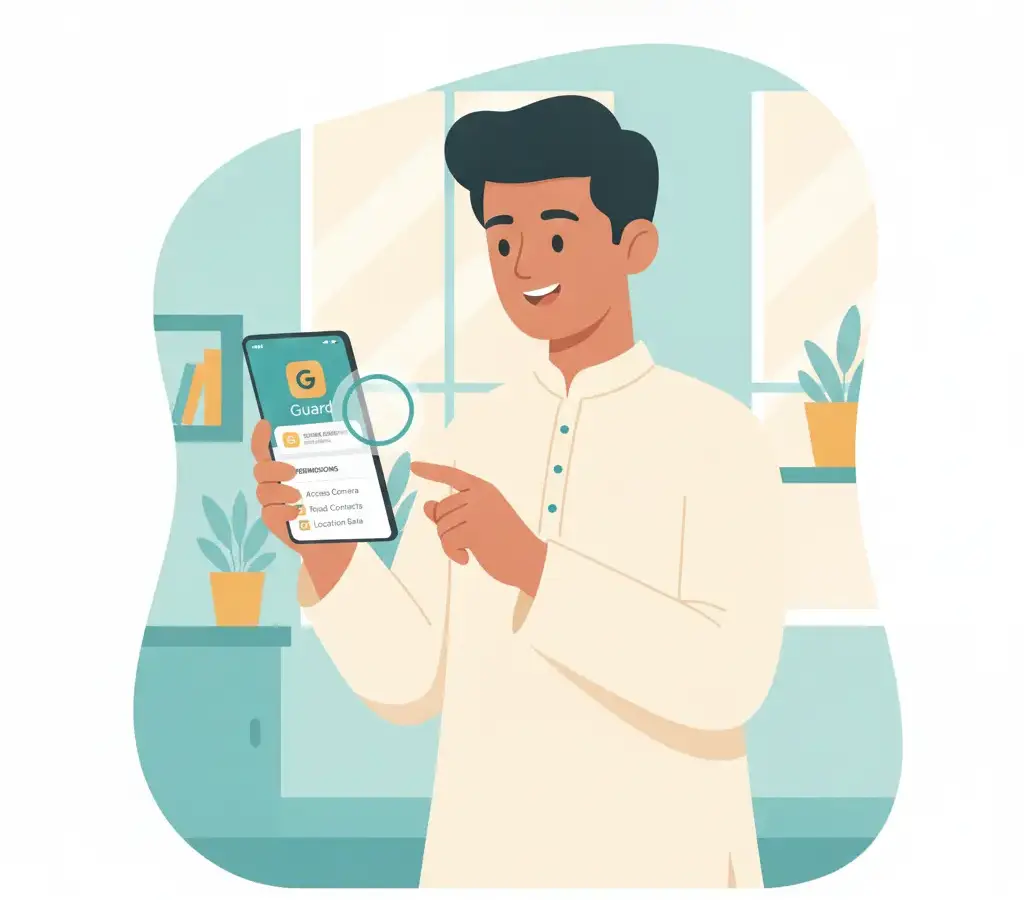
Before installing any app: verify the developer name matches the official company, check the Data Safety section for what data it collects, read recent one-star reviews for red flags, and confirm the permission list is proportionate to what the app actually does. When in doubt, do not install.
Key Takeaways
- Fake apps impersonate real brands by copying icons and names — always verify the exact developer name, not just the app name.
- The Data Safety section on the Play Store is developer-declared, but it still tells you what a legitimate app admits to collecting.
- A disproportionate set of permissions — for example, an alarm clock requesting SMS access — is a reliable warning sign.
- Low install counts combined with a flood of generic five-star reviews is a strong indicator of fake review manipulation.
Why the Play Store Is Not a Complete Safety Guarantee
Google Play does screen apps before they go live, and Play Protect scans installed apps continuously. But the store hosts millions of applications, and Google’s automated checks cannot catch every policy violation on day one. Fake apps impersonating popular banks, government services, and payment platforms appear periodically before being removed. By the time a malicious app is taken down, it may have been installed by thousands of users.
This is not a reason to avoid the Play Store — it is still far safer than downloading APK files from random websites or Telegram groups. But it does mean you should apply your own checks before installing anything, especially apps related to banking, health, or government services.
Check the Developer Name Carefully
The most common technique in fake app fraud is impersonation. A fraudulent app may be called “SBI Mobile Banking” with an icon that looks exactly like the State Bank of India’s official app. The difference is in the developer name, which appears in smaller text below the app title on the Play Store listing.
The official SBI app developer is listed as “State Bank of India.” A fake app might list a developer named “SBI Bank Services Ltd” or “Mobile Banking India” — names designed to look plausible on a quick read. Before installing any app from a major institution, go to that institution’s official website and confirm the exact app name and developer they recommend. Do not search the Play Store and pick the first result.
Several fake apps impersonating Karnataka government services and national tax portals have been reported. Always arrive at a government app via the official government website link — never by searching a generic term like “income tax app India” in the Play Store.
Read the Data Safety Section
Since 2022, the Google Play Store requires developers to fill in a Data Safety section disclosing what data the app collects, whether it is shared with third parties, and whether it can be deleted on request. You will find this on any app’s Play Store page, below the screenshots.
Treat the Data Safety section as a minimum baseline. If it shows the app collects location, device identifiers, and financial information and shares them with third parties — and the app is a simple utility — that mismatch is worth scrutinising. The section is developer-declared and not independently verified by Google, but legitimate developers who provide complete disclosures are still more trustworthy than those who fill in nothing or claim to collect no data at all.
Examine the Permission List Before You Install
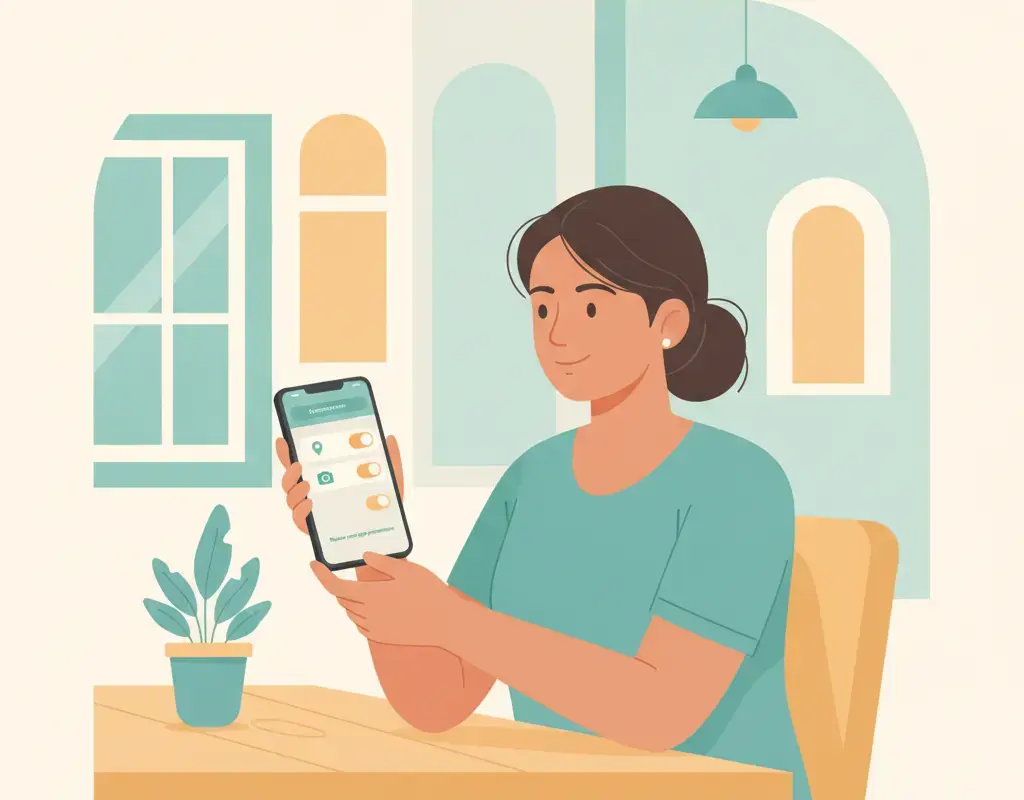
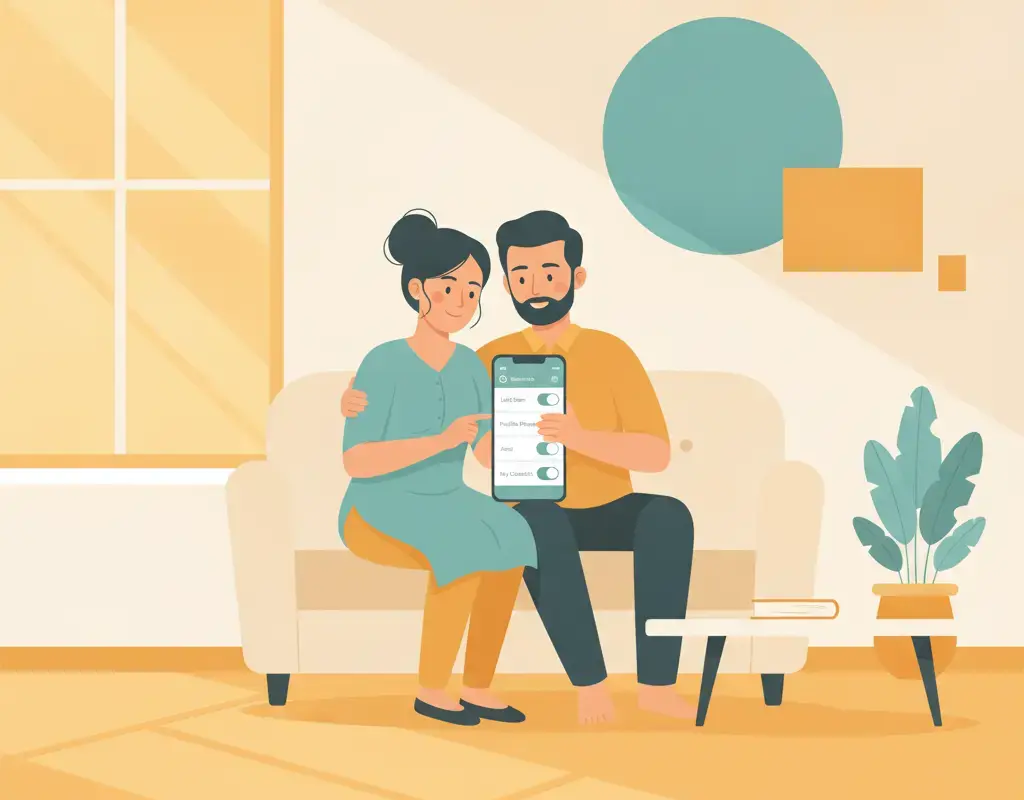
On the Play Store app listing page, scroll to the bottom and tap “About this app,” then look for the permissions section. You can see what the app will request before you install it. Apply the same logic described for post-install permission audits: does the core function of this app require this permission?
- A barcode scanner needs Camera. It should not need Contacts, SMS, or Microphone.
- A loan or finance app may legitimately need basic device info. It should not need full access to your call logs and SMS — that combination is the fingerprint of a fraudulent loan app designed to harvest data for coercion.
- A game needs storage for saves and possibly microphone for voice chat. It should not need Contacts or precise Location.
CERT-In specifically flagged fraudulent loan apps in India that request SMS, Contacts, Camera, and Location simultaneously at install — far more than any legitimate lending app needs. If you see all four requested together in a loan or KYC app, close the listing immediately.
Assess Reviews Critically
App reviews are manipulable, but patterns still reveal useful information. Look at:
Volume and velocity: An app with 10,000 five-star reviews but only released two weeks ago is suspicious. Legitimate apps accumulate reviews gradually. Sudden bursts of generic praise — “Great app! Works perfectly!” repeated with different usernames — indicates purchased reviews.
One-star reviews: Sort by lowest rating and read recent negative reviews first. Genuine users experiencing fraud, unexpected charges, data harvesting, or an app that does nothing at all will leave detailed complaints. These are more informative than five-star reviews.
Review dates versus app updates: If all negative reviews cluster around a specific update date, the developer may have changed something problematic in that version.
Check the Install Count and App Age
A well-established app from a major institution will have millions of installs and a history going back years. A brand-new app with 1,000 installs claiming to be from a national bank or a government department is almost certainly not legitimate. The Play Store shows the install range and the app’s first published date on the listing page — scroll down to “App info” to find these.
Look Up the Developer Outside the Play Store
A legitimate app developer will have a verifiable web presence. The Play Store listing includes a link to the developer’s website. Open that link and check: does it go to the official company domain? Does the domain look genuine (not something like “sbionlineservice.in” instead of “sbi.co.in”)? If the developer website link leads to a blank page, a generic template, or a domain registered very recently, treat that as a serious red flag.
When to Use Additional Scanning Tools
For apps from outside the Play Store that you must install for a specific reason, VirusTotal allows you to upload an APK file and scan it against dozens of antivirus engines simultaneously. This does not guarantee safety — novel malware may not yet be in any database — but it catches known threats quickly. The service is free and does not require creating an account.
Google Play Protect covers apps installed from the Play Store automatically. For everything else, a manual check via VirusTotal is a practical step before you run the file.
Sources
Vikram Nayak
Vikram Nayak leads cybersecurity coverage at Cyber Kannadigas. He is a certified information-security professional (CompTIA Security+ and CEH) with eight years of experience in security operations and awareness training at IT-services firms in Bengaluru. Vikram translates dense security concepts — phishing kits,… Read full profile →
Frequently Asked Questions
Stay scam-safe: alerts in your inbox
Get new scam alerts, UPI-safety tips, and digital-literacy guides weekly. Free.