WhatsApp Privacy and Security Settings Everyone Should Check
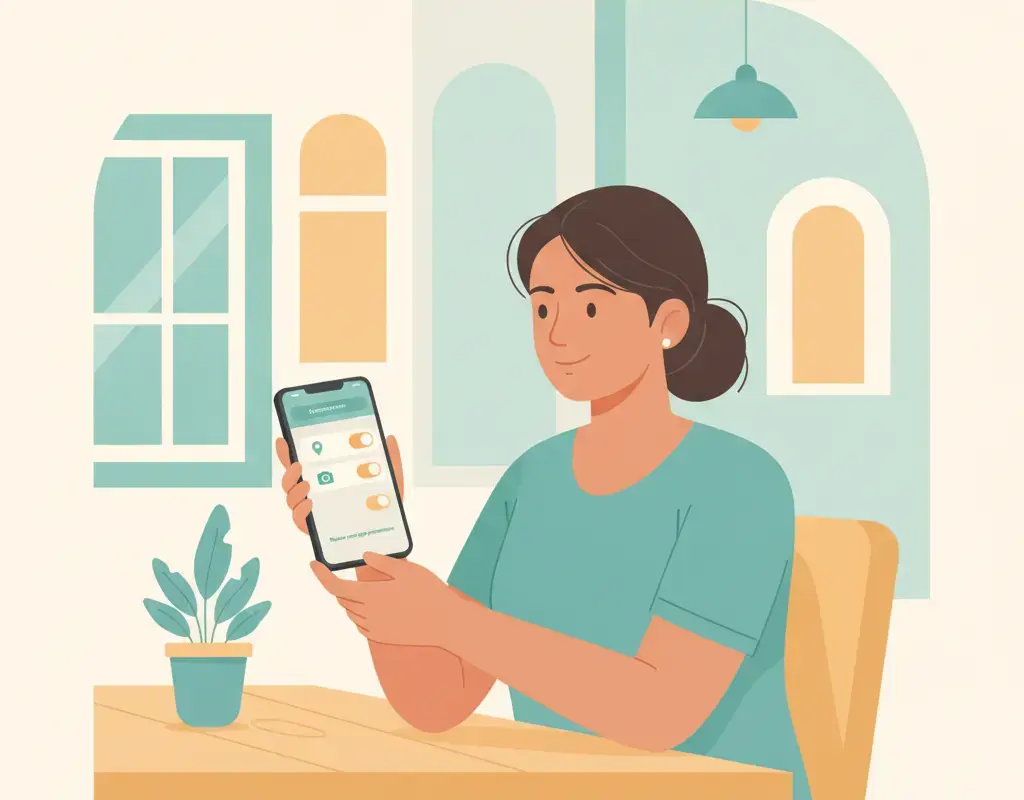
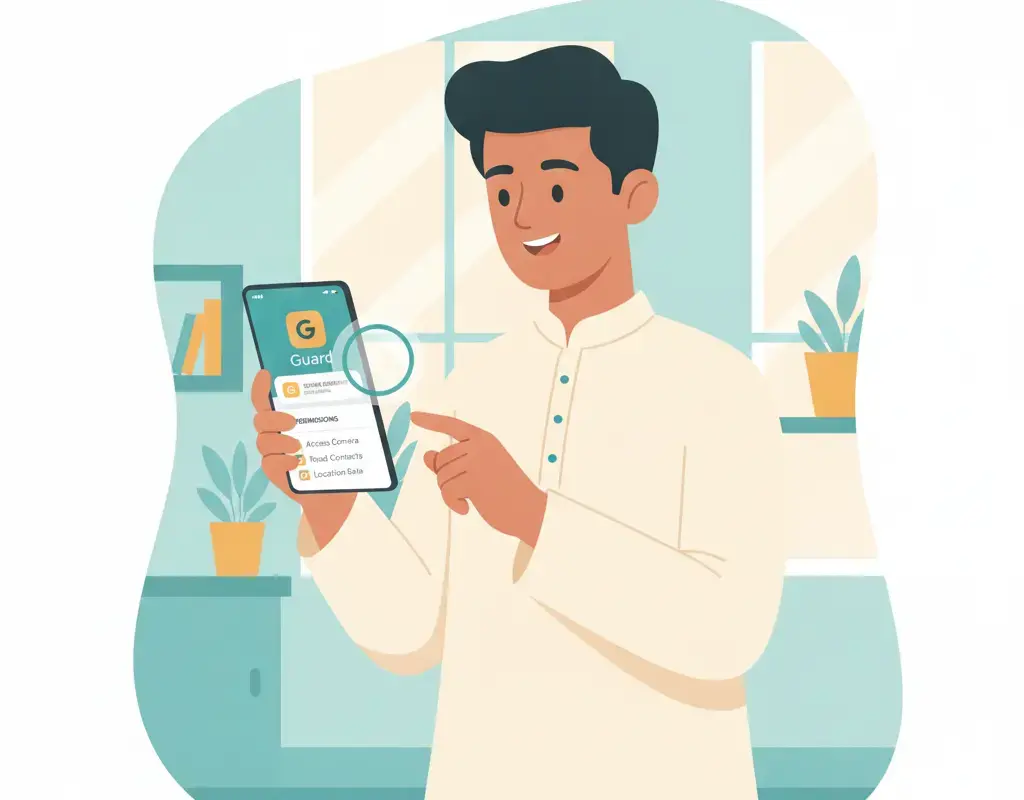
WhatsApp has dozens of privacy and security controls that most users never touch — leaving profile photos, last seen timestamps, and even live location visible to people they did not intend. This step-by-step guide walks through every setting worth reviewing, from two-step verification to linked devices.

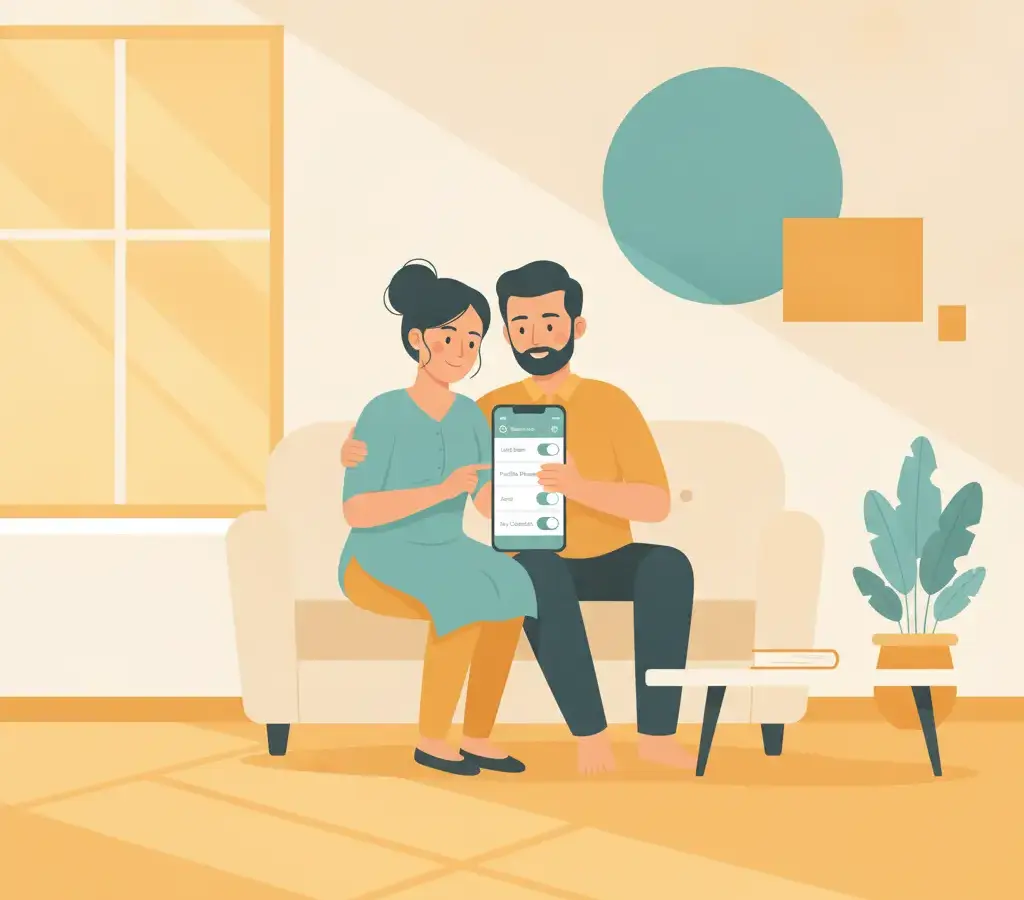
The three most important WhatsApp security steps are: enable two-step verification (Settings → Account → Two-step verification), restrict your Last Seen and profile photo to Contacts only, and review your Linked Devices list to remove any sessions you do not recognise. These three actions close the most common attack vectors.
Key Takeaways
- Two-step verification adds a six-digit PIN that prevents anyone who obtains your SIM from taking over your account.
- Keeping Last Seen, profile photo, and About visible to 'Everyone' lets strangers — including scammers — confirm your number is active.
- Linked Devices is the most commonly overlooked setting — an unknown device in that list means someone has session access to your account.
- Never share your six-digit WhatsApp registration code with anyone, including people who claim to be WhatsApp support.
Why These Settings Matter
WhatsApp is the primary communication channel for hundreds of millions of people in India, and Karnataka is no exception. Its ubiquity also makes it a priority target for fraud. Account takeover via SIM swap, impersonation of friends and family members, fake customer-care calls, and group-based scam links are all active threats documented by Karnataka’s cybercrime units.
WhatsApp’s built-in privacy and security controls are well-designed, but they are not all turned on by default. Walking through them once, and revisiting them after major app updates, is straightforward and takes under fifteen minutes.
Step 1: Enable Two-Step Verification
Open WhatsApp → tap the three-dot menu (Android) or Settings (iPhone) → Account → Two-step verification → Enable. You will be asked to set a six-digit PIN and provide a recovery email address.
This PIN is requested periodically by WhatsApp and whenever your number is registered on a new device. Without it, anyone who manages to port or duplicate your SIM number — a real threat in India, documented in multiple CERT-In advisories — cannot complete WhatsApp registration even if they have your SMS OTP. The recovery email is important: use one you genuinely control, because it is your only way back in if you forget the PIN.
A common WhatsApp scam in India works like this: a caller pretending to be a friend or WhatsApp support says they “accidentally” sent you an OTP and asks you to forward the six-digit code. That code is the WhatsApp registration SMS — sharing it hands over your account immediately. WhatsApp’s official help pages confirm that WhatsApp will never call or message you to ask for your code.
Step 2: Review Who Can See Your Profile Information
Go to Settings → Privacy. You will see controls for Last Seen and Online, Profile Photo, About, and Status. Each can be set to Everyone, My Contacts, My Contacts Except…, or Nobody.
The safest baseline for most people is My Contacts for Last Seen, Profile Photo, and About. Setting these to “Everyone” means any stranger who has your phone number can confirm you are active, see your face, and read your status — information that scammers use to build convincing impersonation attempts. “Nobody” for Last Seen hides the timestamp from everyone, including your contacts, which some users prefer for personal reasons.
The “My Contacts Except…” option is useful if you are in large professional or community groups where your number is visible to people you do not personally know. You can exclude that broader set from seeing your profile photo while keeping it visible to genuine contacts.
Step 3: Manage Read Receipts and Online Status
In Settings → Privacy, you will find Read Receipts (the blue double-ticks) and the Last Seen and Online toggle. Turning off read receipts means the other person cannot see when you have read their message — the ticks remain grey. Note that this also disables read receipts for you: you will not see when others have read your messages either.
The Last Seen and Online setting has a second part: even if you hide your last-seen timestamp, WhatsApp still shows when you are actively using the app (the “online” indicator). You can suppress this too within the same menu on recent versions of WhatsApp.
Step 4: Review Linked Devices
Go to Settings → Linked Devices. This shows every browser session and secondary device currently logged into your WhatsApp account. WhatsApp Web and WhatsApp Desktop sessions appear here.
Look at each entry: the device type, browser name, and the last-active timestamp. If you see a session you do not recognise — a browser you do not use, a location timestamp that does not match your activity — tap it and select Log out. A full audit should include logging out of all sessions and re-logging in only on devices you currently use. This takes under two minutes and eliminates any persistent session access someone may have established without your knowledge.
Step 5: Control Who Can Add You to Groups
Go to Settings → Privacy → Groups. The default setting is “Everyone,” which means any WhatsApp user can add your number to a group without asking you first. This is how scam groups distributing fraudulent investment schemes, fake prize notifications, and phishing links reach new victims.
Set this to My Contacts or My Contacts Except…. When someone not in your contacts tries to add you to a group, WhatsApp will instead send you an invitation link that you can accept or decline. This single change significantly reduces unsolicited group additions.
Step 6: Check Default Message Timer
Go to Settings → Privacy → Default message timer. This sets a disappearing-messages duration for all new chats you start. Options are 24 hours, 7 days, 90 days, or off. Enabling a timer by default does not retroactively affect existing chats.
For most personal use, seven or ninety days is a sensible default — messages disappear automatically after that period from both sides of the conversation. This is particularly relevant for financial information, OTPs, and personal documents shared over WhatsApp, which people often forget are sitting in an old chat thread.
Step 7: Verify Security Codes for Sensitive Contacts
WhatsApp uses end-to-end encryption by default. You can verify that the encryption keys between you and a specific contact have not been tampered with by going to a chat → tap the contact’s name → Encryption → Scan code or compare numbers. If the 60-digit code matches on both phones, the conversation is secure. WhatsApp will also notify you if a contact’s security code changes — this usually means they got a new phone, but in rare cases it could indicate a security event.
WhatsApp publishes a full security whitepaper explaining its encryption implementation at whatsapp.com/security. For users who want technical detail about how end-to-end encryption works in practice, it is worth a read.
Step 8: Silence Unknown Callers
Go to Settings → Privacy → Calls → Silence unknown callers. Enabling this means WhatsApp calls from numbers not in your contacts are silenced — the call still appears in your call log, but your phone does not ring. This does not block the call; it simply prevents the interruption. For most users, this dramatically reduces nuisance calls from marketing and fraud numbers while keeping calls from known contacts unaffected.
Sources
Vikram Nayak
Vikram Nayak leads cybersecurity coverage at Cyber Kannadigas. He is a certified information-security professional (CompTIA Security+ and CEH) with eight years of experience in security operations and awareness training at IT-services firms in Bengaluru. Vikram translates dense security concepts — phishing kits,… Read full profile →
Frequently Asked Questions
Stay scam-safe: alerts in your inbox
Get new scam alerts, UPI-safety tips, and digital-literacy guides weekly. Free.